Back to Case Study
Reframed Problem Statement
Zoom is made mainly for meetings and classrooms, not for creative classes. Teachers and students in fields like dance, yoga, music, and drama face many problems. There is audio delay, unclear video for movements, and not enough tools for creative feedback. These problems disturb the class flow, reduce learning quality, and make users use other difficult methods to manage classes.
Initial Proposed Solutions for Creative Classes
At the start of the problem statement, I already had a few solution ideas in mind. After talking to users and understanding their problems, I realized these ideas were raw and not well defined. I noted them down to explore and improve later.
Posture-aware student view : Show how students are positioned.
Dual spotlight : View both instructor and student clearly.
Audio sync tools : Align music and voice without lag.
Interactive gestures : Quick feedback like “repeat” or “pause”.
Class-type presets : Yoga, Dance, Music layouts auto-adjusted
YouTube integration : For reference and guided practice.
Improved flow : Support voice modulation and expression work
Color Palette Modification for Artists
Since Zoom mainly uses a blue color, I wanted to make the experience more creative for performing artists. I explored a modified color palette that feels artistic but does not confuse business or education users. This design change is limited only to artistic use cases, so other users continue to see the original Zoom experience.
Zoom ( Recognised for Education & Bussiness )
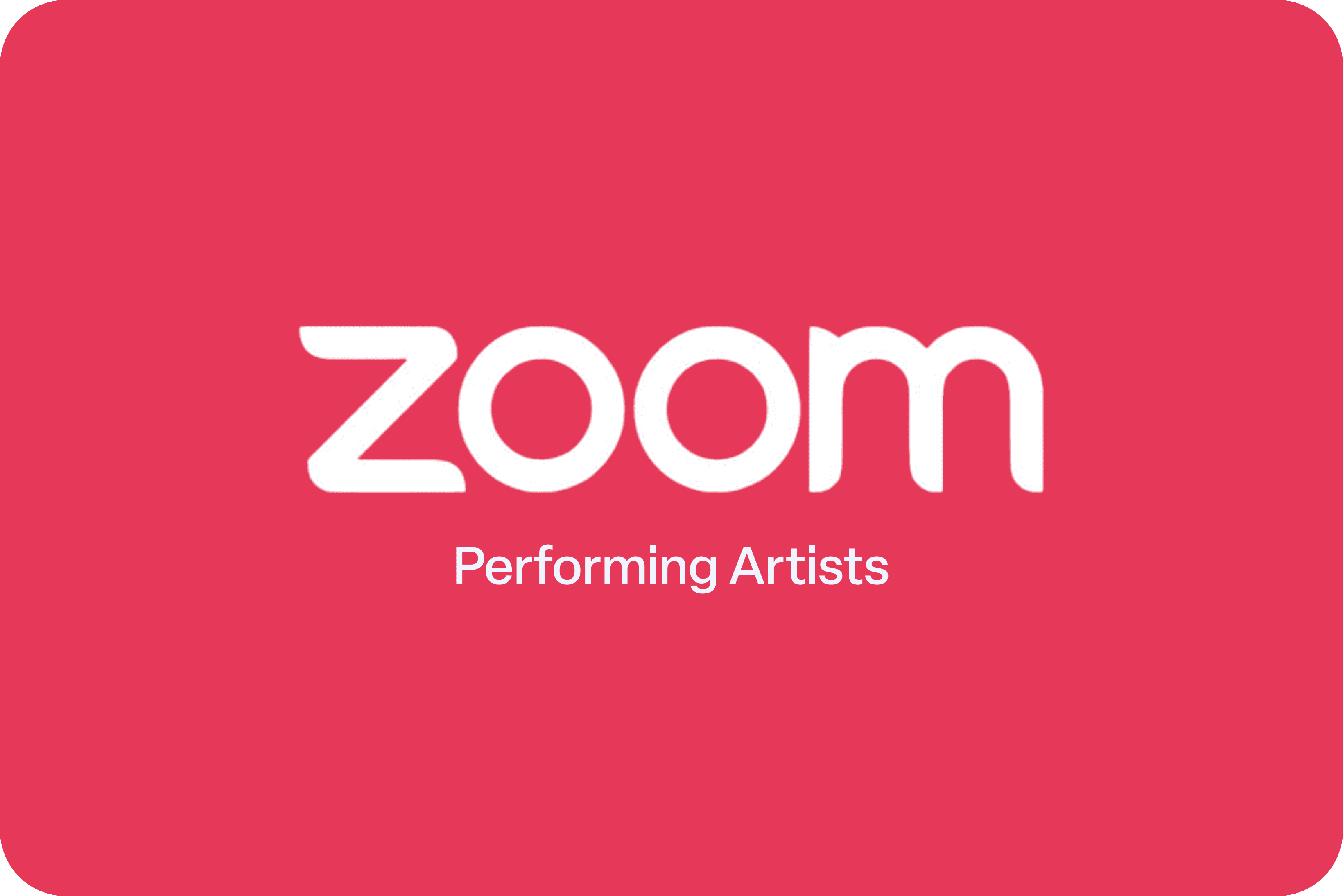
Zoom for Performing Artisits
Wireframes of the Improved Experience
I collected all possible solutions by suggesting features that could help performing artists. I worked on each feature one by one, removed the ones that were not workable, and put my ideas on paper to make them easy to understand.
I tried to maintain the same UI for all four fields so it would be easy to switch between different artistic performances.
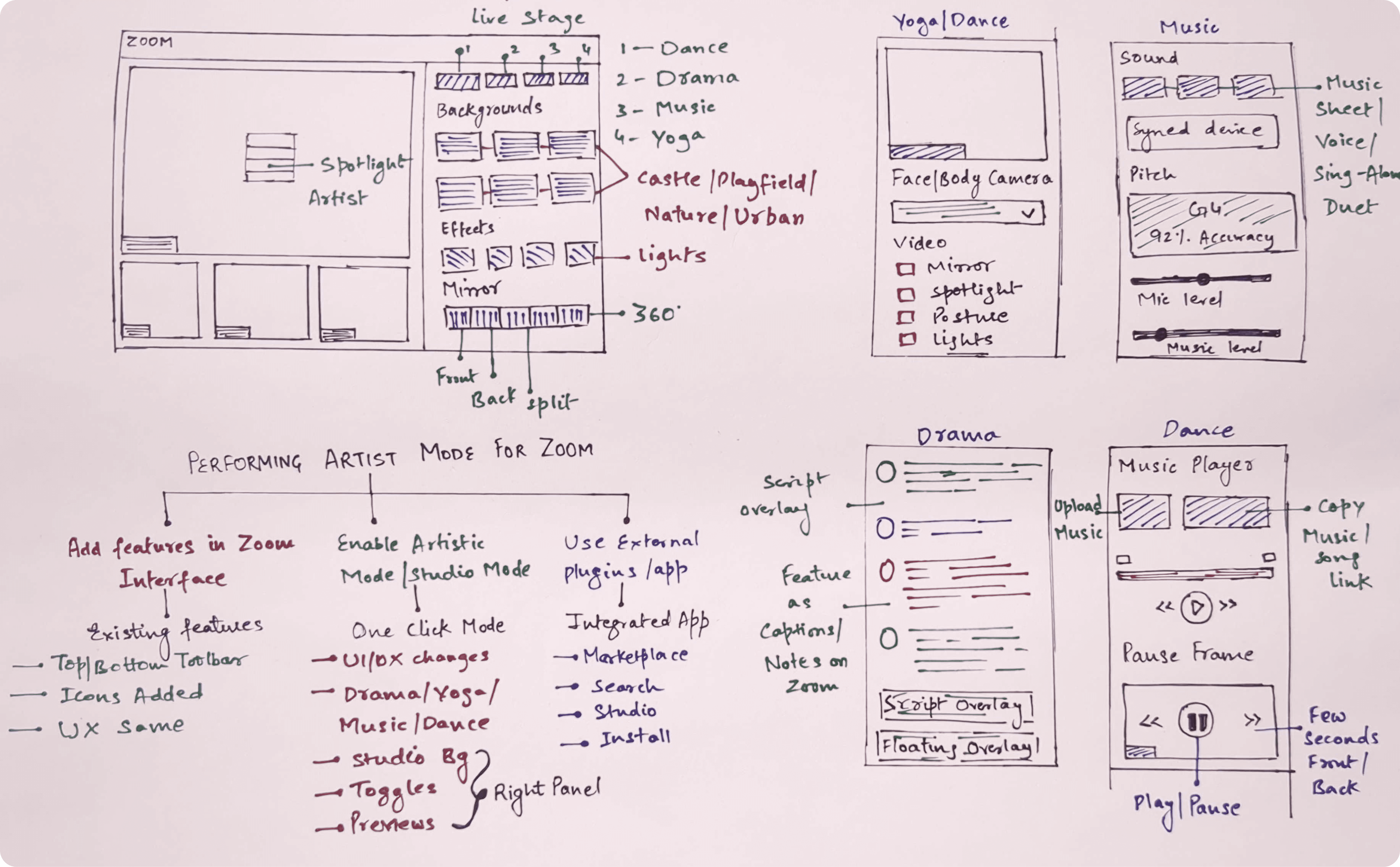
Solutions for Performing Artists
I approached this problem in three different ways. I explored and tested three solutions with performing artists to understand which option works best and is most useful for their needs.
The three preferred solutions are:
Feature-based improvements : Inside Zoom for faster learning and control
Optional external plugin integration : For advanced and tech-savvy artists
Built-in Artistic Studio Mode : For simple and smooth teaching
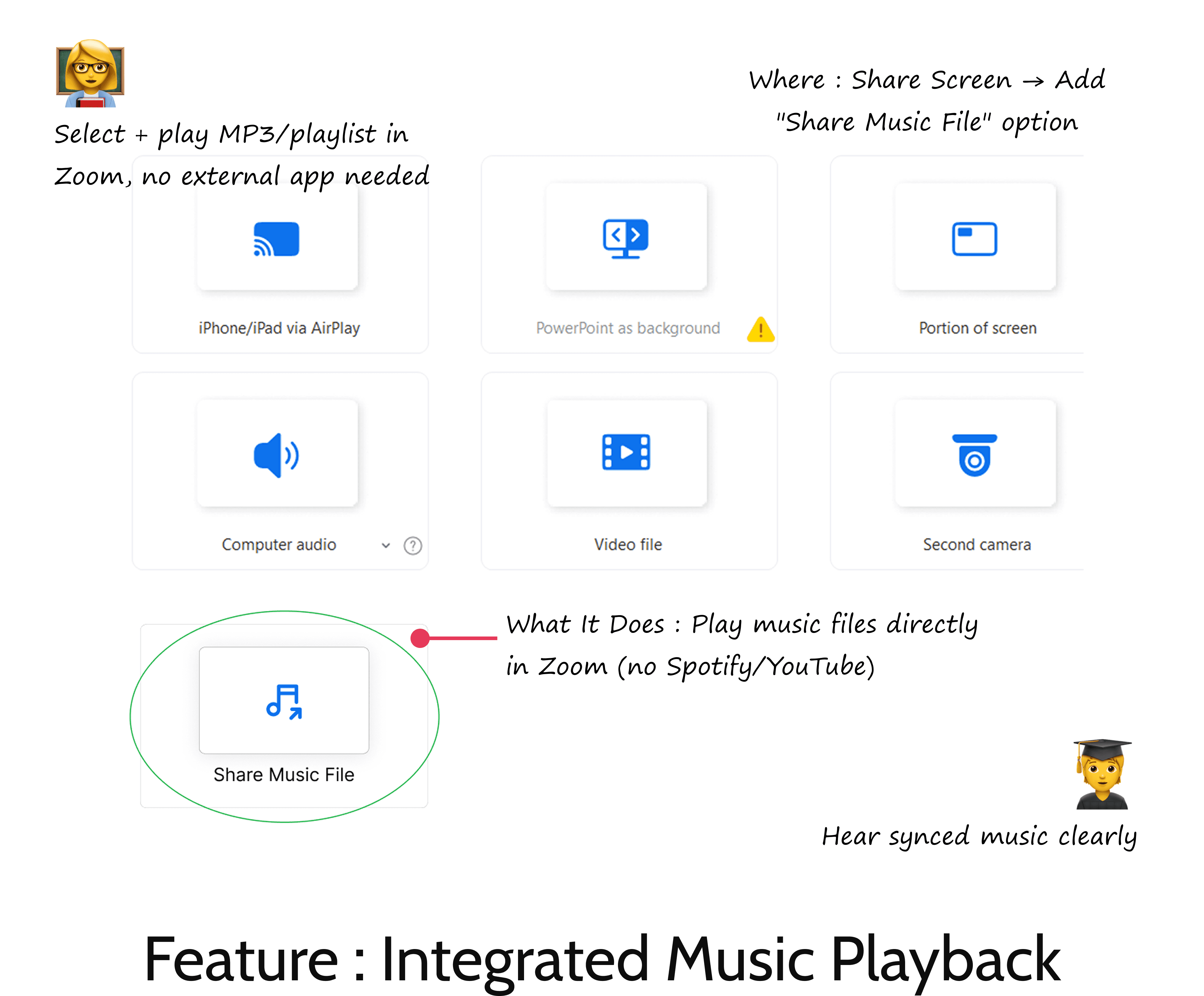
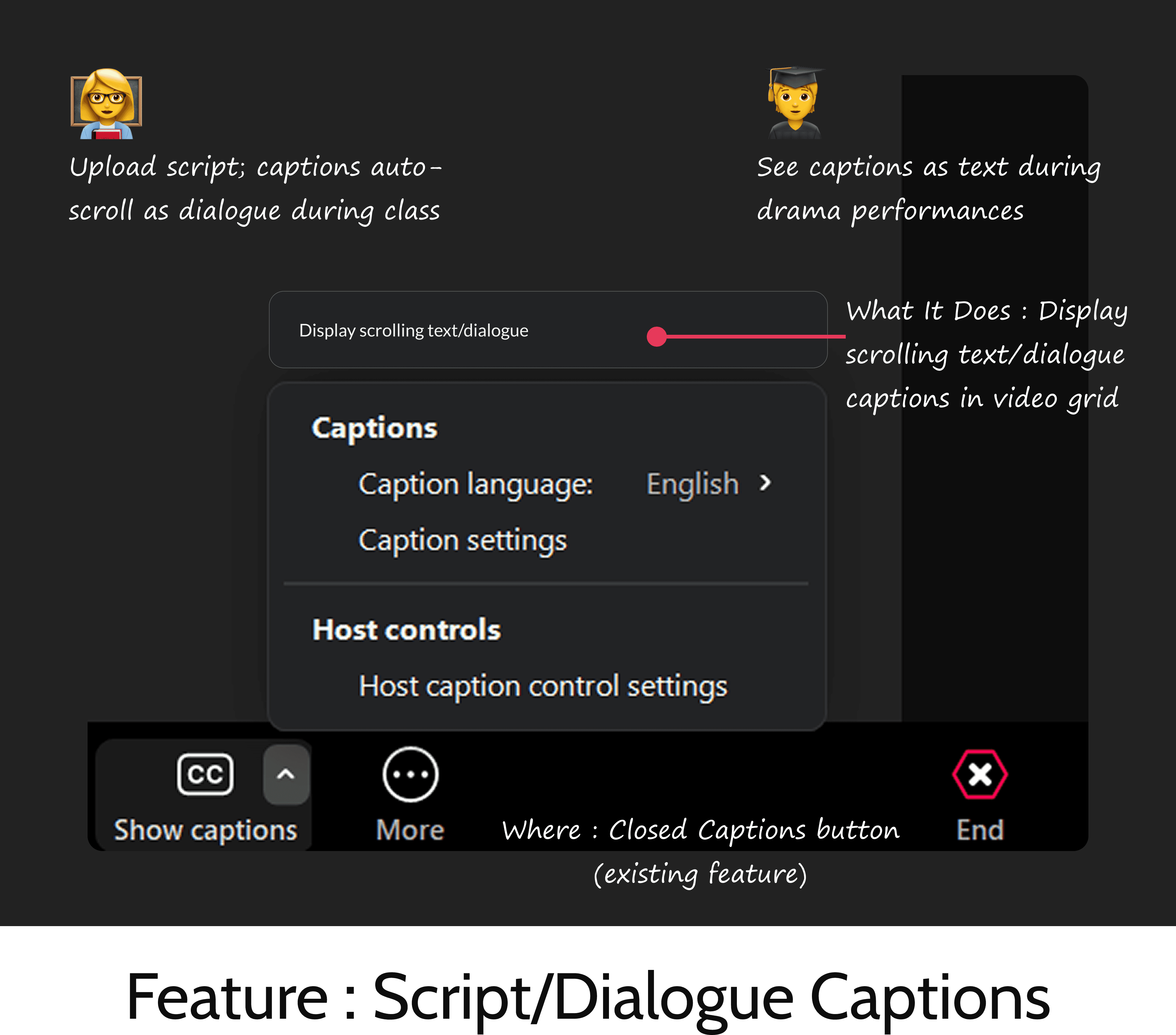
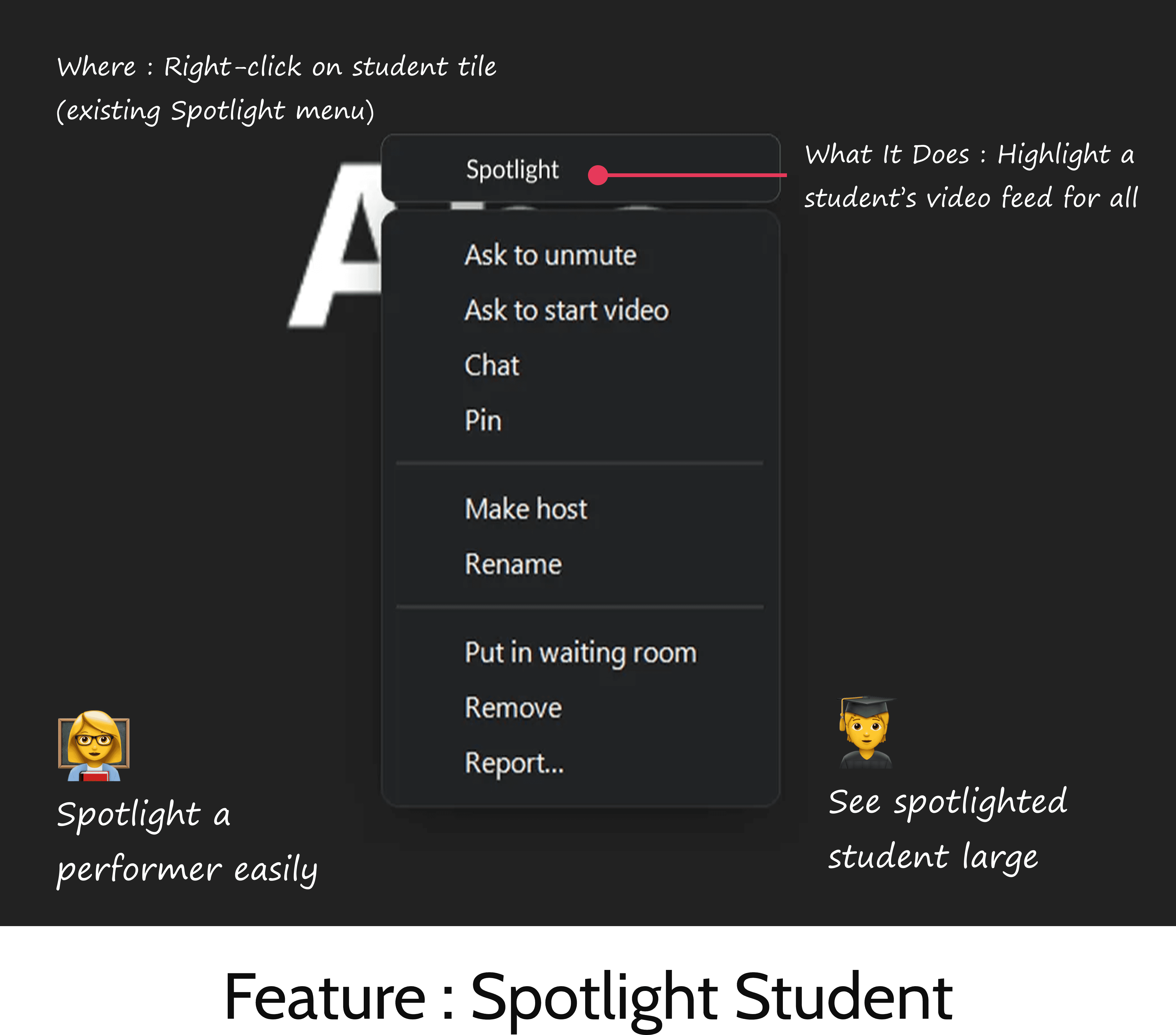
Add Features Within Zoom Interface
Enhance existing Zoom toolbars with new icons and creative teaching utilities.
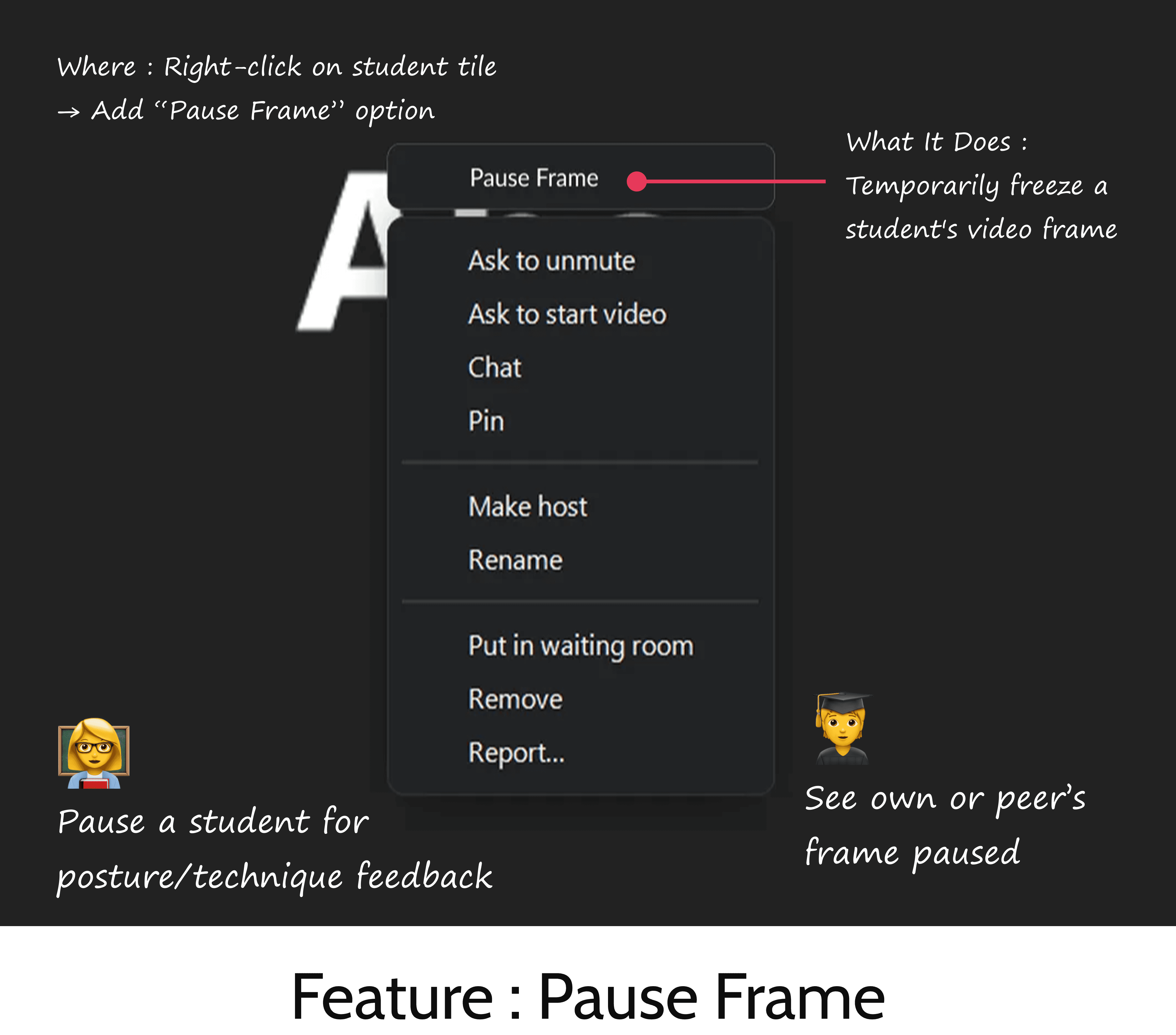
Use External Plugin/App Integration
I explored using an external plugin or app integration as a solution to manage creative sessions on Zoom. This approach allows advanced users to install tools from a marketplace and use them directly inside the meeting through a side panel.
Users need to search, preview, and install plugins, which can be difficult for beginners. Because of this, plugin integration works best as an optional solution for tech-savvy instructors, while core features should remain simple and built into Zoom for everyday use.
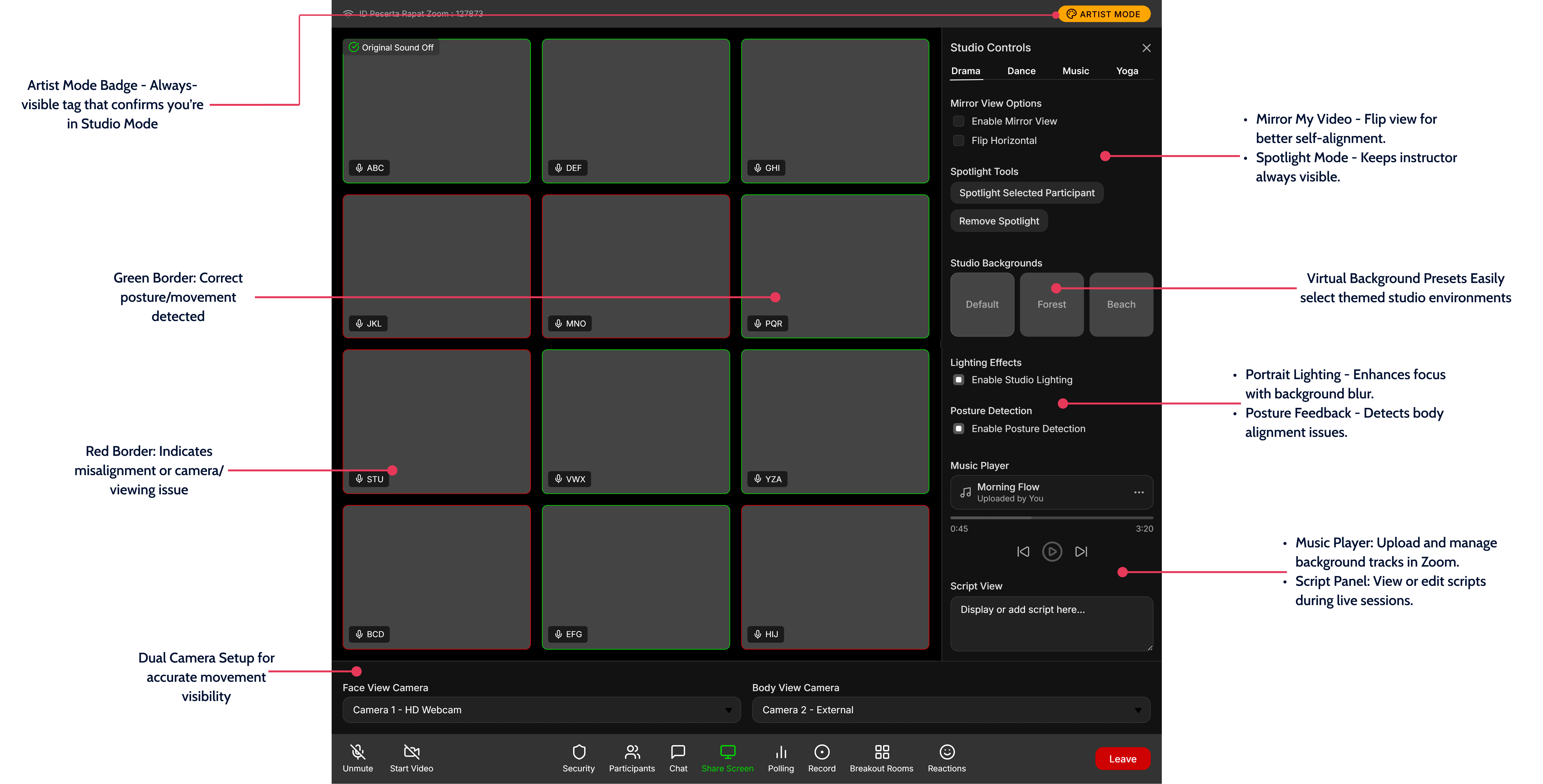
Artistic Mode (Studio Mode)
Enhance existing Zoom toolbars with new icons and creative teaching utilities.
Enhance existing Zoom toolbars with new icons and creative teaching utilities.
Getting Started with Zoom Artist Studio
Meeting Type : Select Zoom Artist Studio for creative sessions.
While scheduling, you can choose between Standard or Zoom Artist Studio as the meeting type.
Zoom Artist Studio gives a creative setup but works just like normal Zoom meetings.
It adds new tools without changing any existing features or settings.
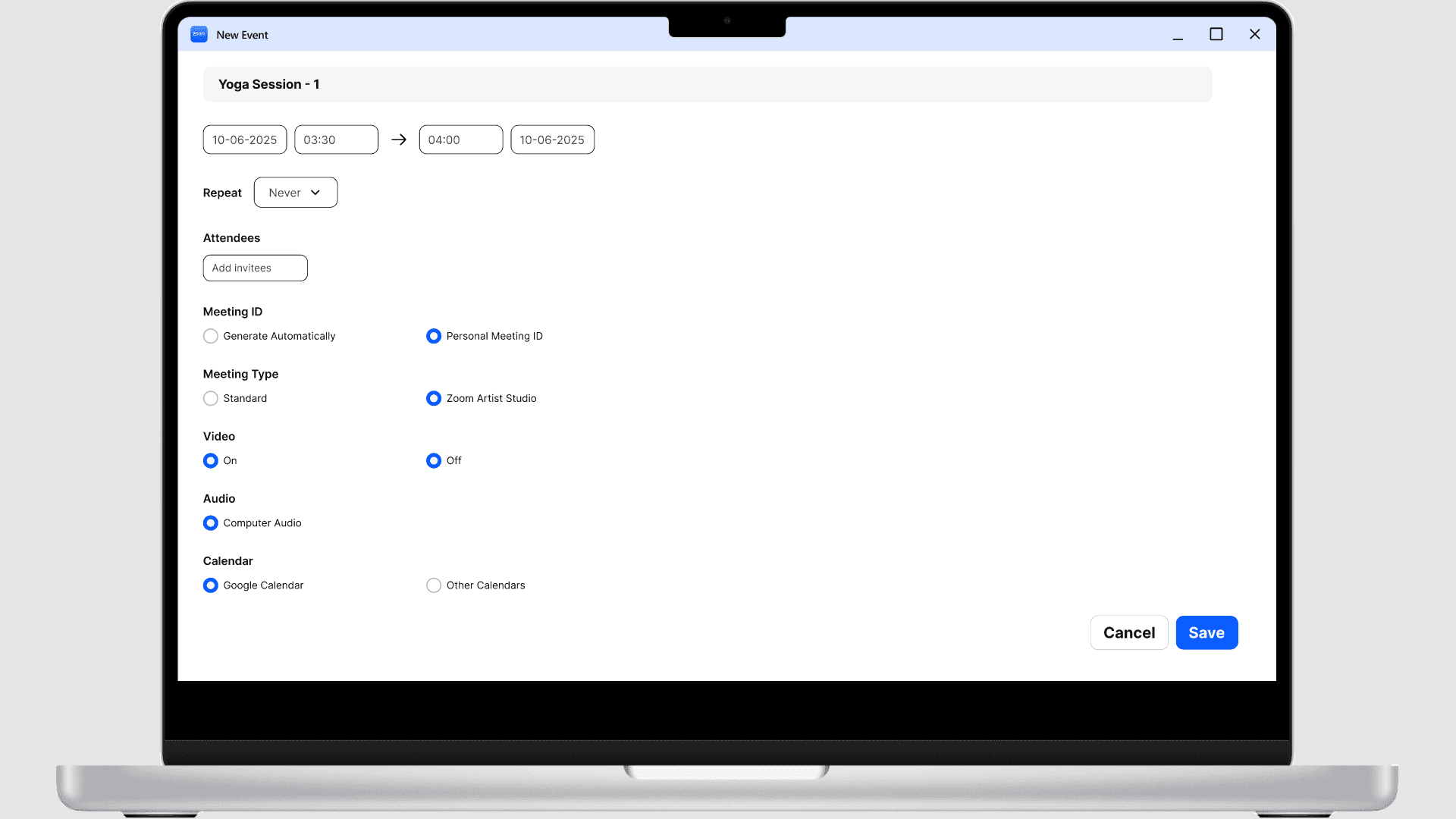
Final UI Design : Artist Studio Interface
Meeting Type : Select Zoom Artist Studio for creative sessions.
While scheduling, you can choose between Standard or Zoom Artist Studio as the meeting type.
Zoom Artist Studio gives a creative setup but works just like normal Zoom meetings.
It adds new tools without changing any existing features or settings.
Introducing Features for Studio
I divided this interface into four modes: Yoga, Dance, Music, and Theatre. I designed each mode for a different activity, with features that match that mode.
When a mode is selected, the sidebar changes to show tools related to that mode. Even though the features change, the overall design and user experience remain the same.
Users can easily switch between modes based on their needs, making the studio simple and flexible to use.
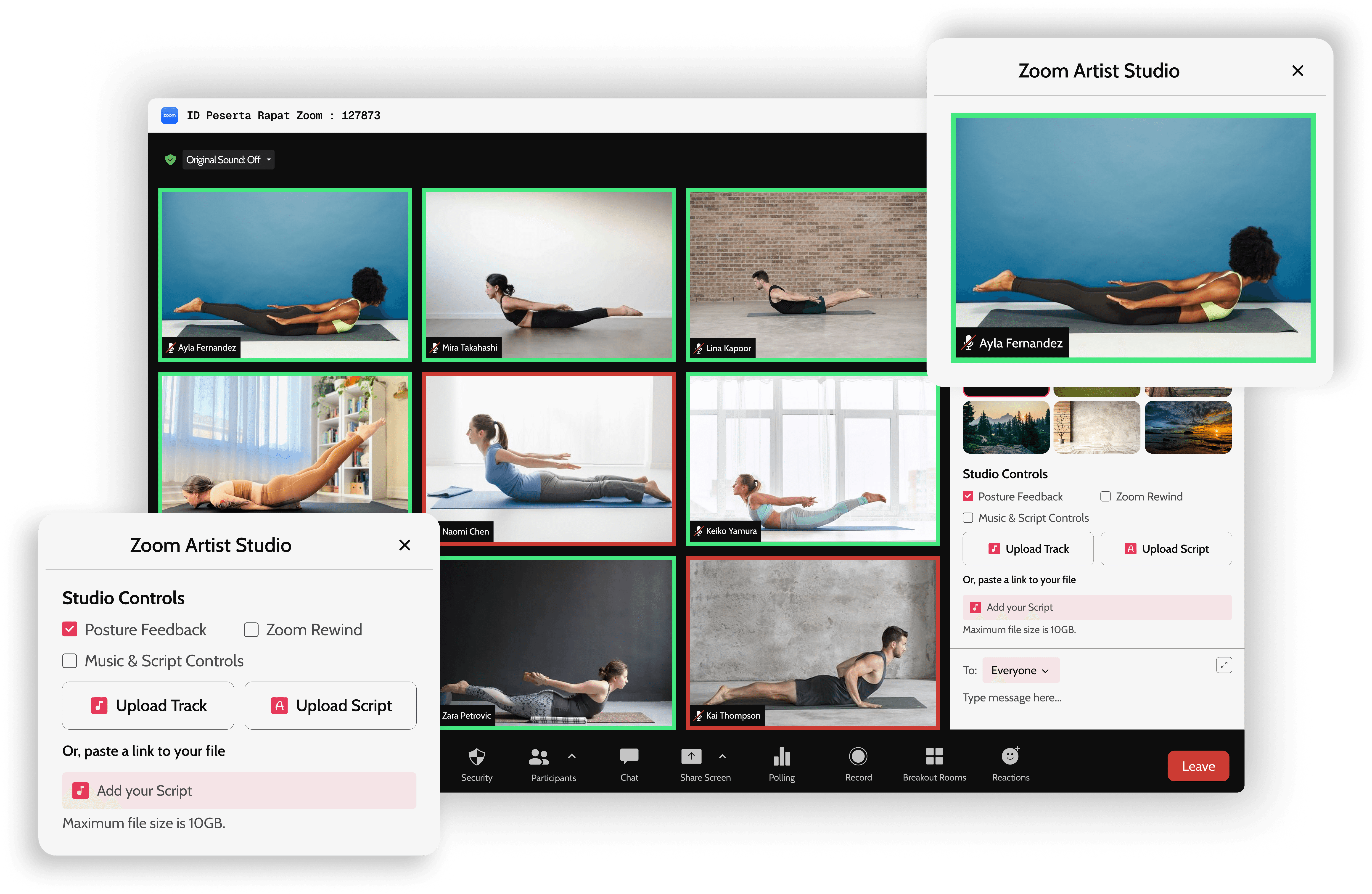
Yoga Mode: Real-time posture feedback shows red or green outlines to help correct form instantly.
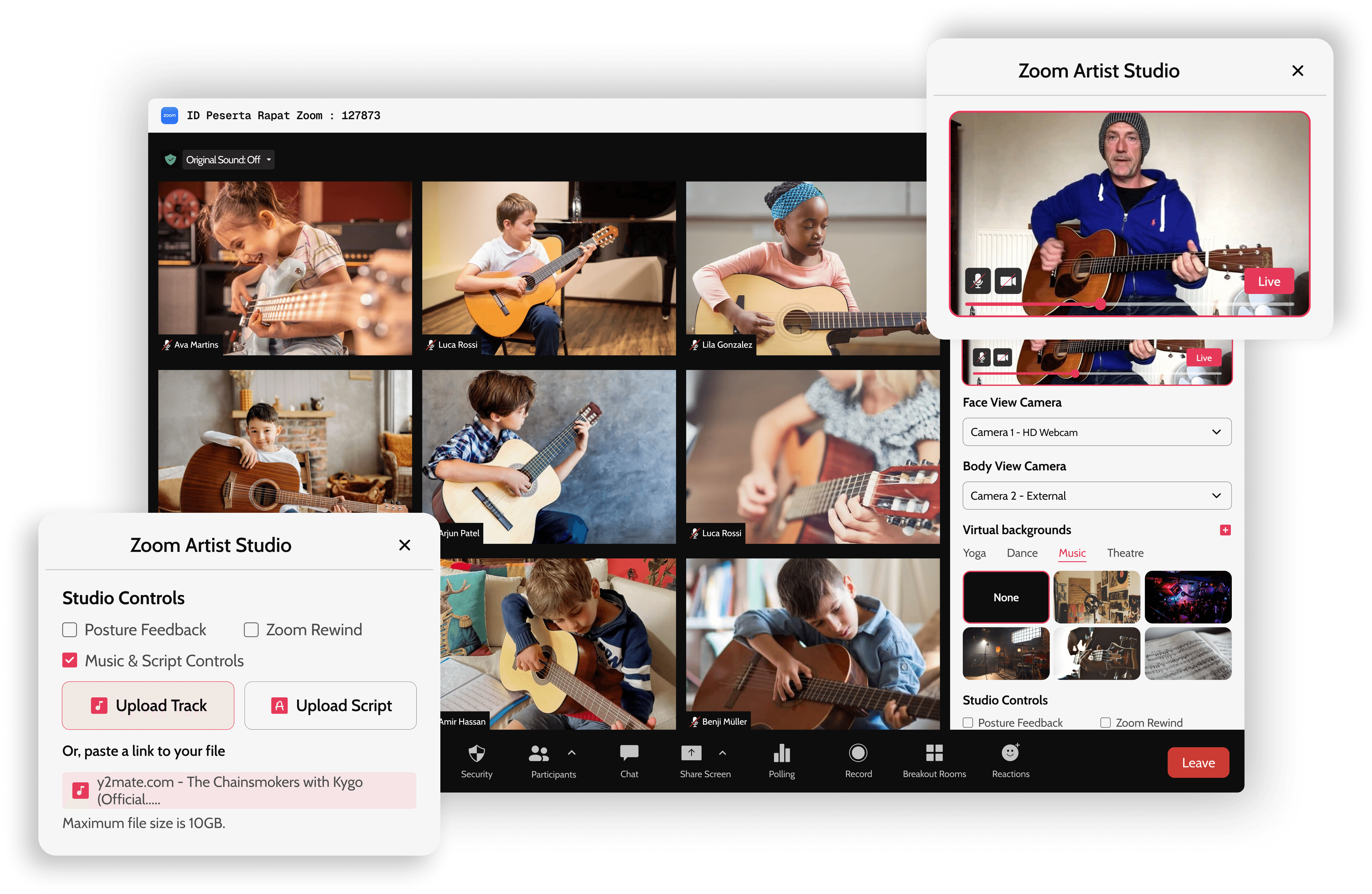
Music Mode: Play the same music on all screens, with easy controls to pause, loop, and cue parts together.
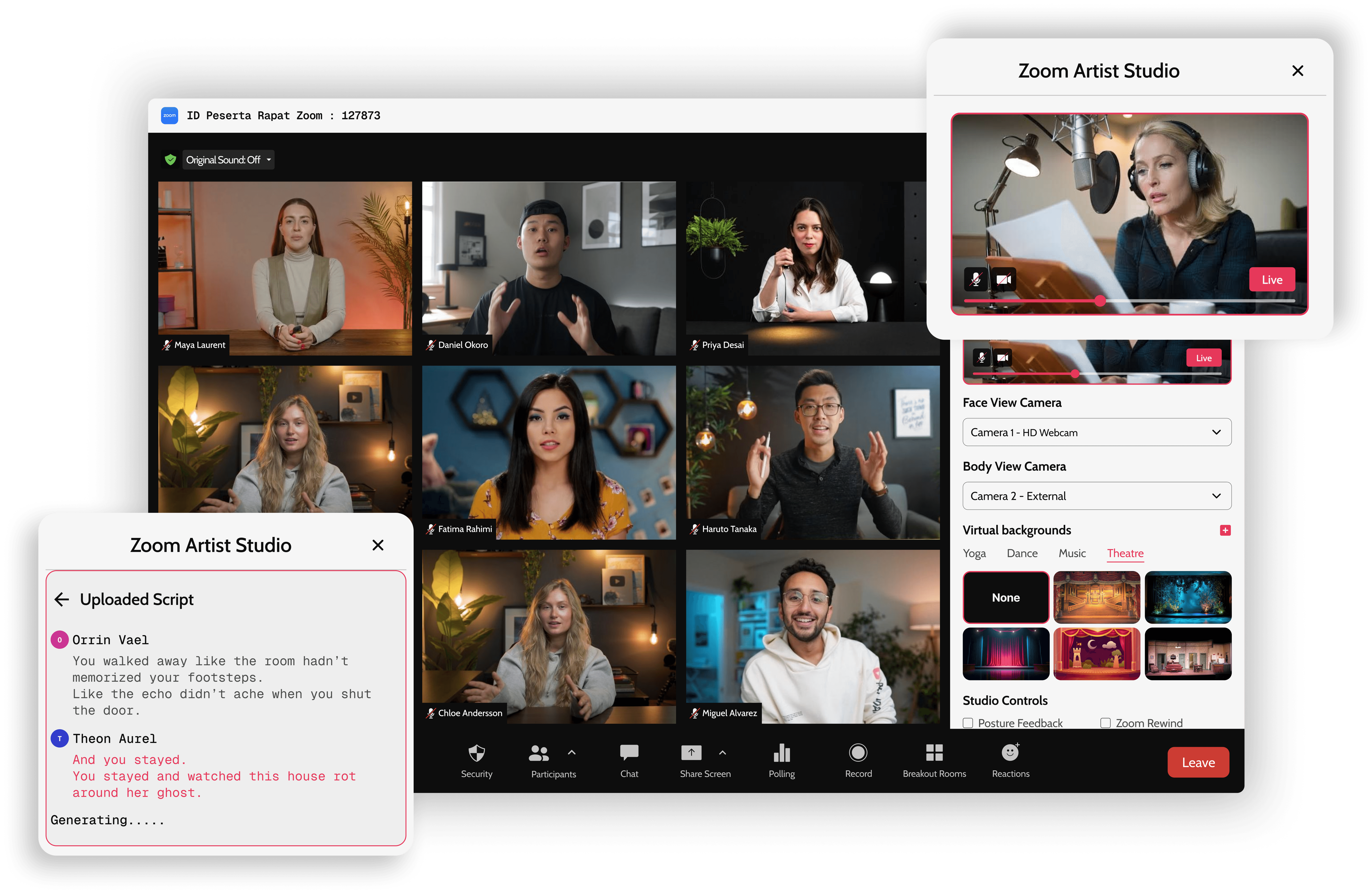
Theatre Mode: Upload and view scripts on screen, with lines visible during practice to help actors stay focused.
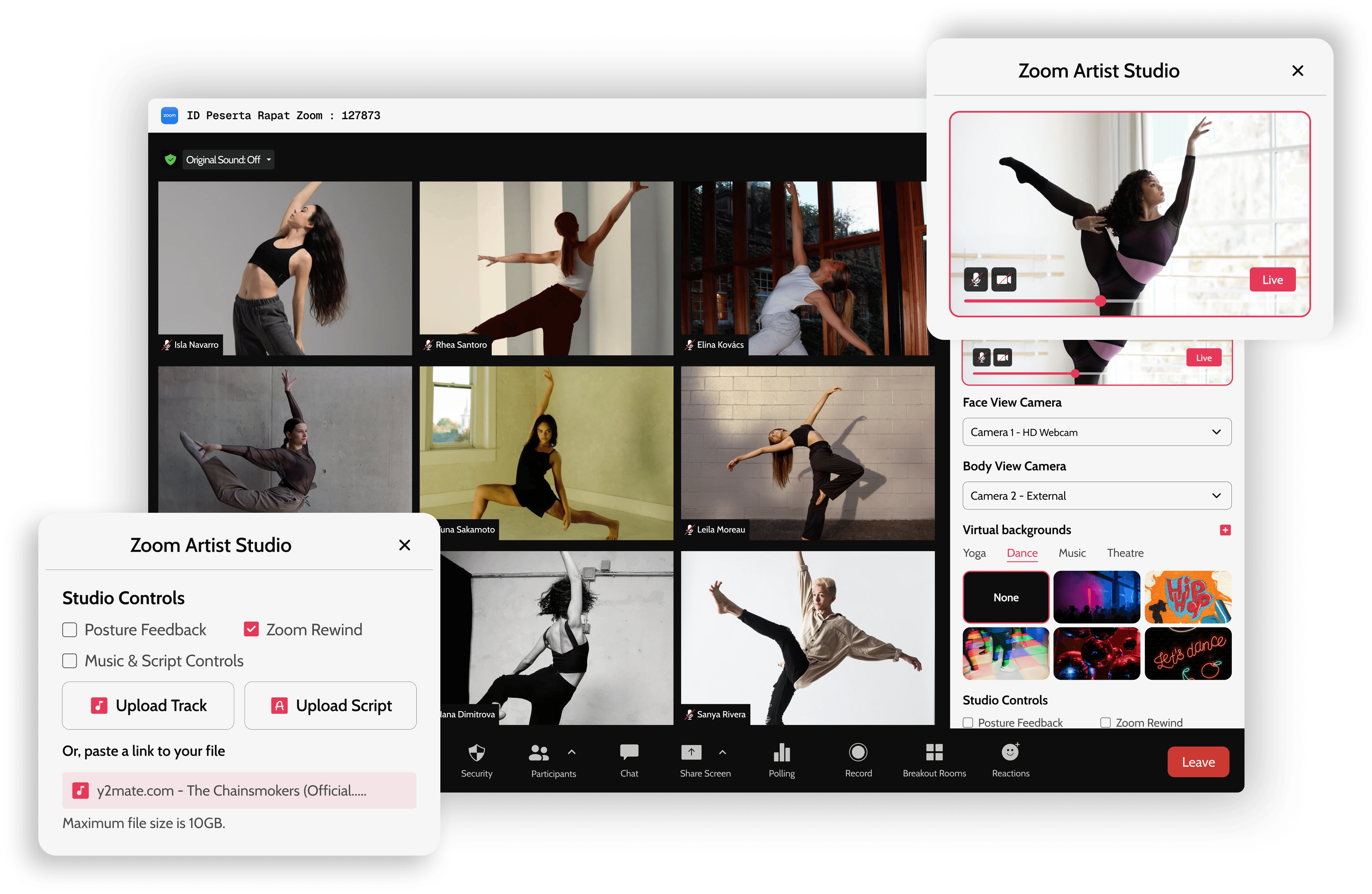
Dance Mode: Quickly rewind a few seconds to rewatch steps and practice moves without restarting.
Usability Testing Overview
I conducted online surveys and 1:1 interviews to understand how instructors use Zoom today and how Artistic Studio Modes improve their experience,
Participants:
4 instructors
Fields:
Music, Dance, Yoga, Theatre
Method:
Online survey based on current usage
1:1 interviews on Google Meet
I spoke one-on-one with one artist from each field to understand how they use Zoom and how Artistic Studio features affect their experience.
Method 1: 1:1 Interviews
Artists were asked to complete tasks using Artistic Studio features. I observed how easy or difficult the features were to use and noted any issues.
Method 2: Online Survey
An online survey was shared to collect ratings and feedback. It compared the experience of using Zoom before and after introducing Artistic Studio Modes.
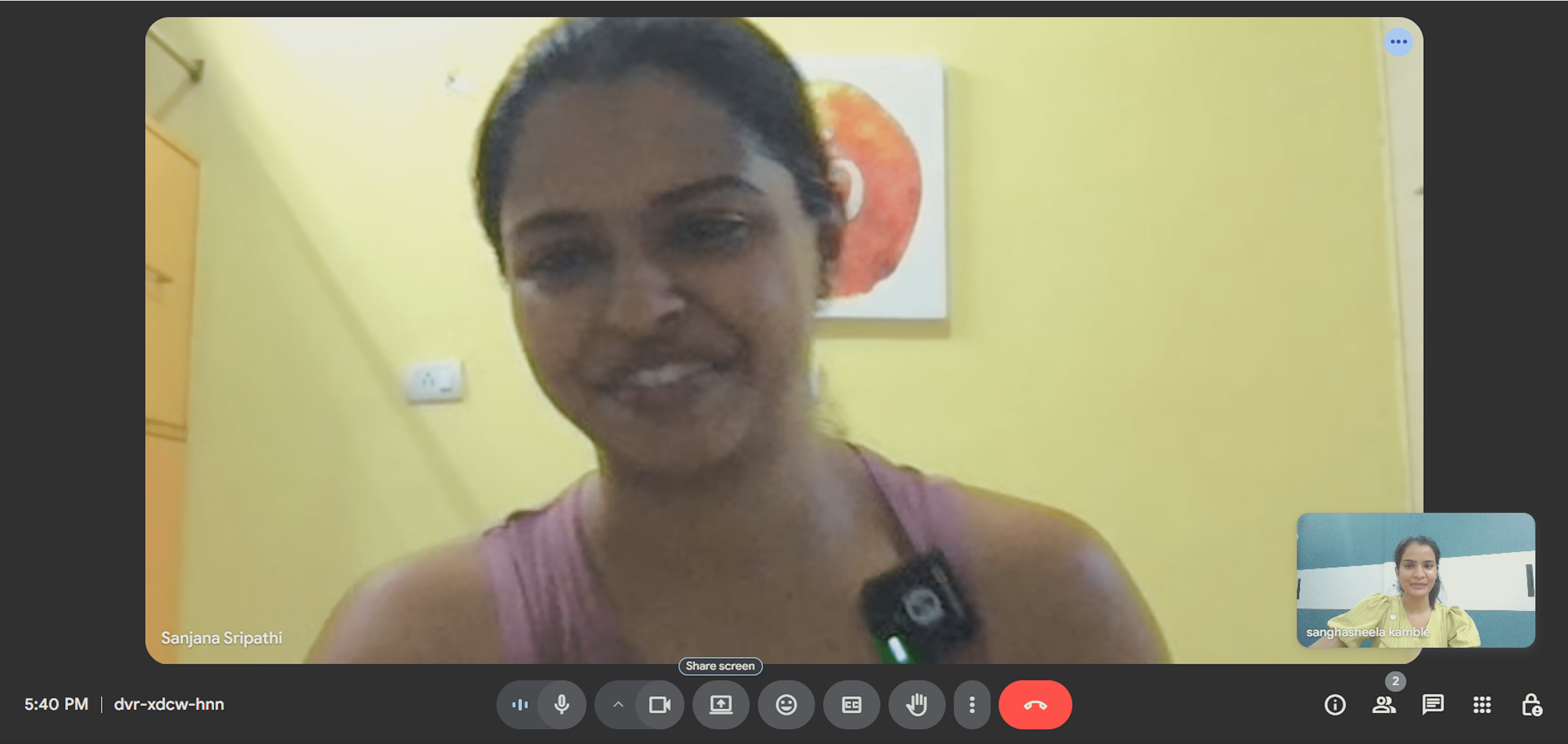
1:1 Interviews
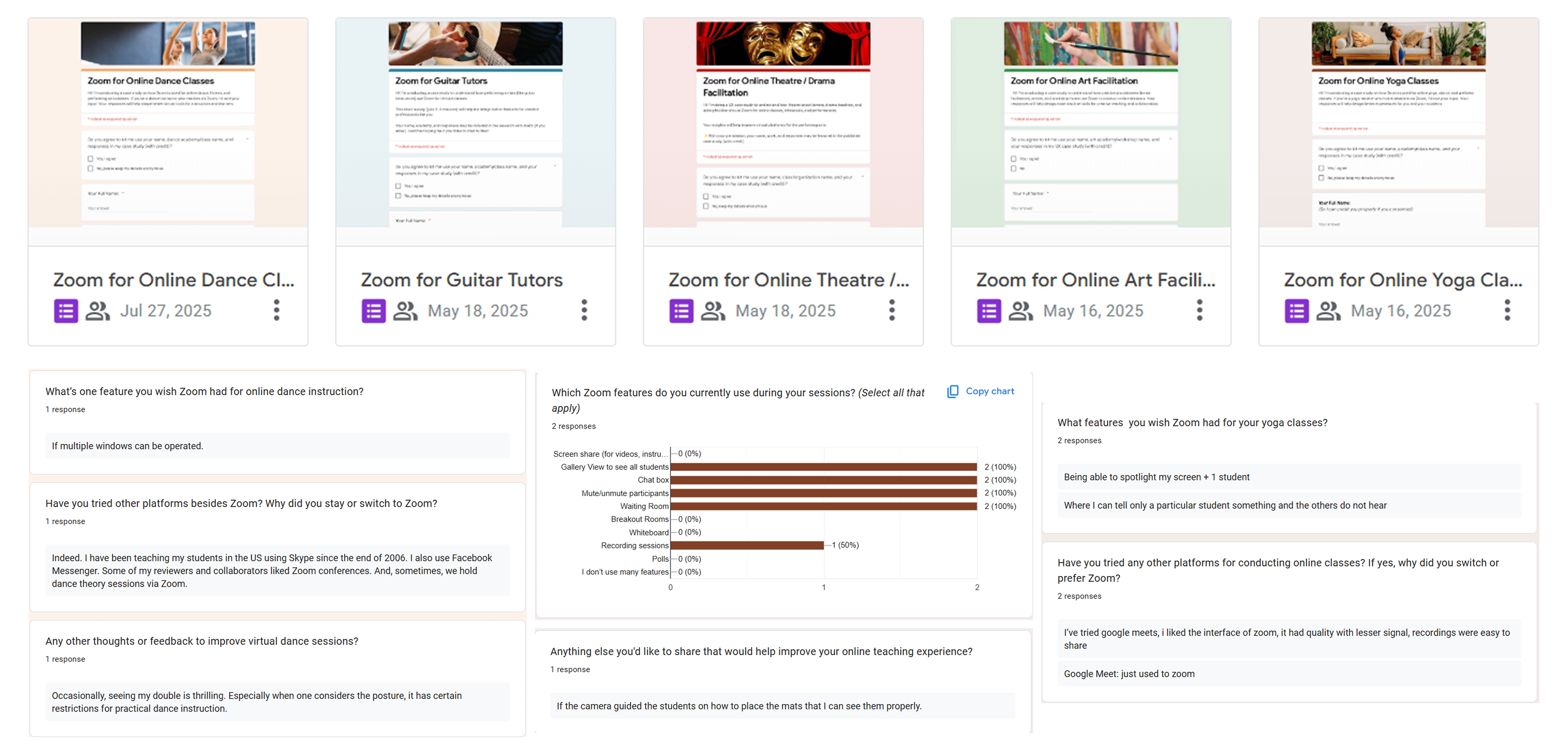
Online Survey
1:1 Interviews Task Summary
I observed their actions, noted any issues they faced, and asked about their preferred way to start and their suggestions. This table summarizes the feedback collected from 1:1 session for Artistic Studio features.
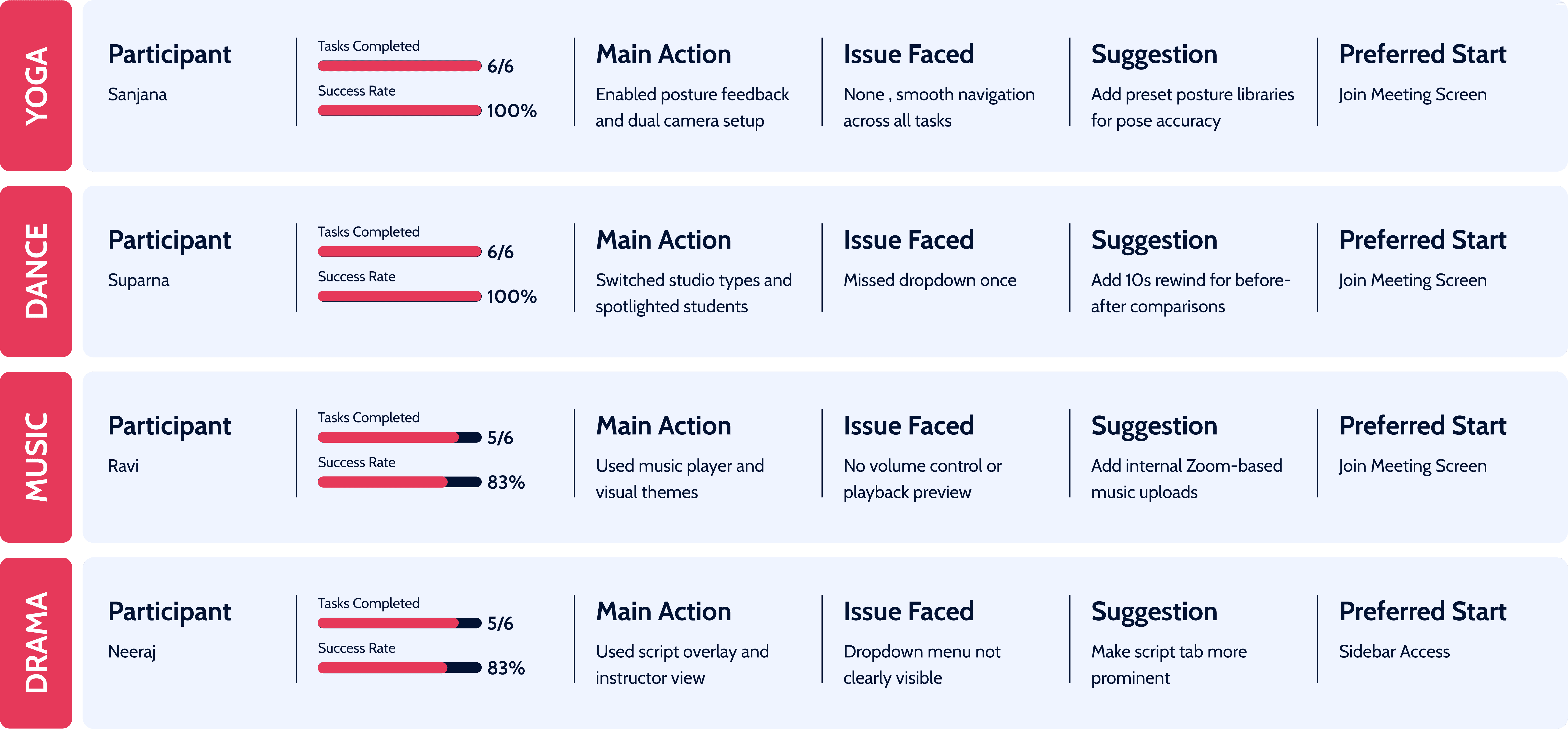
Suggestions & Improvement Execution
Based on the 1:1 interview feedback, artists shared suggestions across all four Studio features. Some suggestions are easy UI improvements, while others involve technical or system-level complexity.
Yoga
Suggestion: Add preset posture libraries for better pose accuracy
Execution approach:
This is technically tough because it needs AI/ML to understand body poses. However, it can be built step by step by starting with common yoga poses and improving accuracy over time.
Dance
Suggestion: Add a 10-second rewind option for before–after comparison
Execution approach:
This is a medium-effort feature. A short rewind buffer can be added so dancers can quickly review steps without restarting or stopping the live session.
Music
Suggestion: Add internal Zoom-based music uploads
Execution approach:
This is technically complex due to audio sync and delay issues. A safer approach is to allow pre-uploaded tracks that play in sync during the session instead of real-time uploads.
Theatre
Suggestion: Make the script tab more visible
Execution approach:
This is a low-effort UI change. Better placement, stronger contrast, or a pinned script option can fix the issue without major technical work.
“ Zoom steps beyond meetings into a creative space for real-time collaboration, performance, and expressive tools ”
A platform which is no longer just for meetings, it's evolving into an interactive studio. These creative tools enhance engagement, expand usability, and make Zoom more relevant for education, business, and the performing arts, without requiring external tools or setups.